

- Download (or update to the latest version of) the An Post Money app from the App Store or Google Play Store
- Open the app and select the “Register” option
- Enter your User ID, which is a 10-digit number located in your welcome pack. You may have also received this via post or email
- If you no longer have your User ID, please contact us on 01 705 8000. We’ll verify your identity and tell you your User ID.
- Enter your email address
- Verify your email address when you receive the verification email. You will receive this email in your email app, not in the An Post Money app.
- Go back into the An Post Money app and create a password.
An Post Money App FAQ's
Getting Started and Registration
If you don't have a smartphone to download the app, you can still manage your current account at any post office, but you will not be able to use our online banking service. You can still:
- Use your card at ATMs and in shops with your PIN.
- Get your account balance at a bank branch ATM and some non-branch ATM’s.
- Ask for a mini statement in any post office and receive an annual statement in the post at the start of the year.
- However, online shopping will not be available as you will need to confirm purchases via the app.
Go to Settings > About Phone (or About Device) on your Android phone. Here you'll find your phone model and Android version.
From 30 October 2026, the An Post Money app requires Android 10 or later. If your phone is running an older version, please update your device software before this date. If your phone can’t be updated to Android 10 or later, you’ll need to use the app on another compatible device.
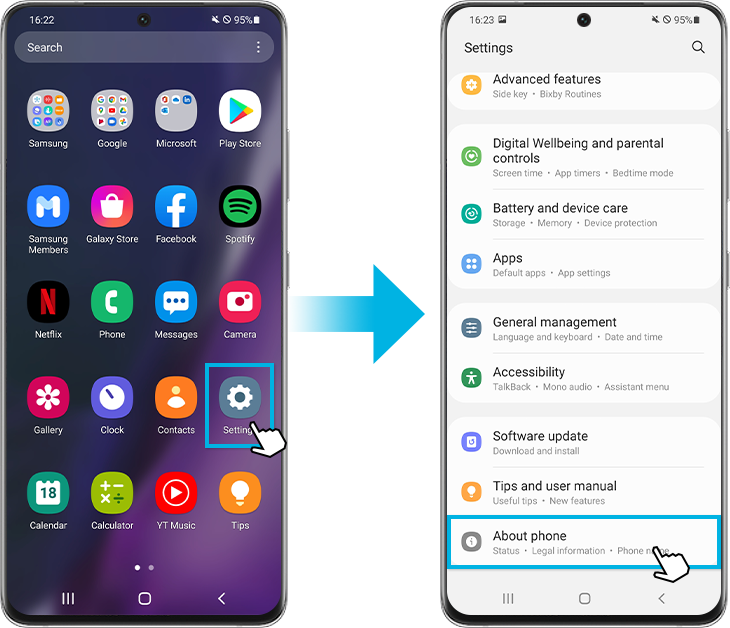
From 30 October 2026, the An Post Money app requires Android 10 or later. If your phone is running an older version, please update your device software before this date. If your phone can’t be updated to Android 10 or later, you’ll need to use the app on another compatible device.
Go to Settings > General > About on your iPhone. Here you'll find your Model Name and iOS Version.
From 30 October 2026, the An Post Money app requires iOS 17 or later. If your iPhone is running an older version, please update your device software before this date. If your iPhone can’t be updated to iOS 17 or later, you’ll need to use the app on another compatible device.
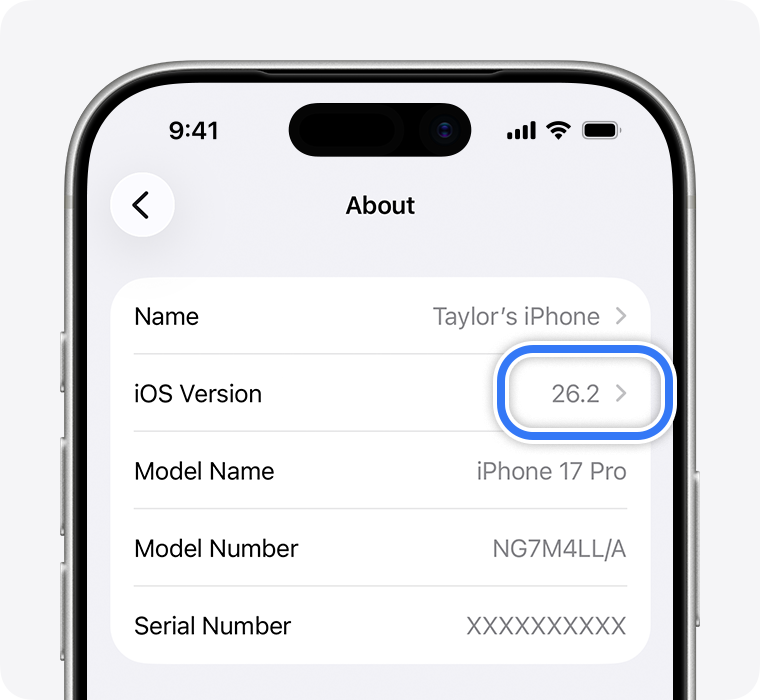
From 30 October 2026, the An Post Money app requires iOS 17 or later. If your iPhone is running an older version, please update your device software before this date. If your iPhone can’t be updated to iOS 17 or later, you’ll need to use the app on another compatible device.
The An Post Money app is only available in the Republic of Ireland. Some devices have their Google Play Store location set to a different country.
To change your Play Store location:
If you still can’t see the app, try clearing your Google Play Store data:
If the issue continues, contact us on 01 705 8000.
To change your Play Store location:
- Open the Google Play Store app
- Select your Profile icon (top right)
- Choose Settings
- Select General
- Select Account and device preferences
- Under Country and profiles, select Ireland
If you still can’t see the app, try clearing your Google Play Store data:
- Go to your phone Settings
- Select Apps
- Choose Google Play Store
- Select Storage
- Tap Clear data
If the issue continues, contact us on 01 705 8000.
From 30 October 2026, you will need the following operating system versions to access An Post Money app:
- iPhone: iOS 17 or later
- Android: Android 10 or later
Login and Security
If you enter your password incorrectly three times, your account is locked to protect your security. Use the Forgot password option to regain access.
- Check to ensure you’ve downloaded the latest version of the app.
- Restart the app rather than minimising it.
- Confirm that your password and login details are correct.,
- Verify your mobile data or Wi-Fi connection, and if issues continue, delete and reinstall the app
- If the problem persists, contact our customer support on 01 705 8000 so we can help you.
If you’ve forgotten your password, you can reset it quickly in the app
- Open the app and tap Forgotten password on the login screen.
- Enter the email address you used to register for the app.
- Tick the box to confirm you’re not a robot.
- We’ll send a verification code to your mobile phone.
- Enter the code on screen and tap Continue.
- When asked, enter your mother’s maiden name.
- We’ll email you instructions and a secure link to reset your password.
- Check your inbox and follow the link in the email (If you don’t see it, check your junk or spam folder)
- Create your new password.
- Return to the app and tap Return to login.
- Enter your app PIN, then log in using your email address and new password.
If you’re still having trouble, please contact our support team on +353 1 705 8000
If you forget your 5-digit login PIN, you can set up a new one quickly and easily:
- Go to the login page of your account or your app
- Click on Forgotten your PIN
- Follow the steps
- You’ll receive an authorisation code on your mobile phone
- Enter the code and reset your PIN
Major updates may reset certain security protocols. You may be asked to reverify using a selfie or One Time Passcode for added protection. This is normal and helps safeguard your account.
Technical Issues
- Double-check the email and mobile number you're using to log in. If unsure, contact our customer support team to verify your details. Restart your phone or turn airplane mode on and off to reset your network connection.
- Ensure your phone isn’t blocking messages from unknown senders or short codes. On Android, check under Messages > Settings > Blocked Numbers. On iOS, go to Settings > Messages > Blocked.
- Delete and reinstall the An Post Money app. Make sure you're using the latest version compatible with your device.
- Some mobile plans or carriers block verification texts. Contact your provider to confirm your plan allows SMS from short codes.
- If none of the above work, call 01 705 8000.
Try fully closing the app (not just minimising), clearing your device cache, and restarting your phone. If the issue persists, delete and reinstall the app and ensure your mobile operating system and app version are up to date. If still unresolved, contact our customer support team on 01 705 8000 with your device type, OS version, and a screenshot of the issue.
How to clear cache (this may clear all saved information for other applications):
On a Web Browser (like Chrome, Edge, or Firefox):
Android:
iPhone/iPad:
How to clear cache (this may clear all saved information for other applications):
On a Web Browser (like Chrome, Edge, or Firefox):
- Open your browser.
- Go to Settings (usually found in the top-right corner).
- Look for Privacy & Security or History.
- Click on Clear browsing data or Clear cache.
- Choose a time range (e.g., “Last hour” or “All time”).
- Select Cached images and files (you can also choose cookies if needed).
- Click Clear data.
Android:
- Go to Settings > Apps.
- Tap the app you want to clear cache for.
- Tap Storage > Clear Cache.
iPhone/iPad:
- For Safari: Go to Settings > Safari > Clear History and Website Data.
- For other apps: You may need to uninstall and reinstall the app to clear its cache.
- Wait 15 minutes and retry again
- Switch Networks - Try toggling between Wi-Fi and mobile data.
- Reinstall the App - Delete and reinstall the An Post Money app. Ensure you’re using the latest version compatible with your device
- Clear Cache on your phone (this may clear all saved information for other applications)
- Restart your phone - Fully close the app (not just minimize), restart your phone, and try again.
- Check for iOS Updates - Go to Settings > General > Software Update and install any pending updates.
- Verify Your Details - Ensure your email, mobile number, and mother’s maiden name match what was provided during account setup. Errors here can block verification.
- If the issue persists - Contact our customer support team on 01 705 8000 and provide your phone model, OS version, and the exact time of your last login attempt. This helps the technical team check logs and escalate if needed.
- The date field may “jump” or reset when entering the year, month, or day—especially on devices using Android 12.
- On iOS devices (e.g. iPhone 16), large text settings can prevent the date field from displaying properly.
- Older versions of the app may not be fully compatible with newer OS versions like iOS 18 or Android 13.
- Reduce Text Size (iOS Only) - Go to Settings > Display & Brightness > Text Size and reduce it to default, then retry logging into the app.
- Update your OS and app to ensure your device is running the latest OS version.
- Delete and reinstall the An Post Money app to get the latest version.
- Power off your phone completely (not just restart), then turn it back on before reinstalling the app.
- Some users found success by entering the year first, then month and day. If it still jumps, try switching to a different keyboard or input method.
- Contact our customer support team on 01 705 8000 if you are still having issues.
Payments and Transfers
- Open the An Post Money app and log in to your current account.
- Tap Pay & Transfer.
- Select Manage recipients and select Add a new recipient or choose an existing one. Please note, if you have recently added a new payee you will not be able to send funds for 48 hours.
- Enter the recipient’s IBAN and name.
- The app will perform a Verification of Payee (VOP) check which will tell you if the name matches, is a close match, a mismatch, or cannot be verified. If you are paying a joint account, it will confirm if the name matches at least one account holder.
- Enter the amount (up to €2,000 per transaction or up to maximum €10,000 per day)
- Confirm the payment. The money will be transferred within seconds, 24/7—even on weekends and holidays.
App Features
Yes, you can use Open Banking to securely connect other accounts and view all your finances in one place using the Money Manager budgeting tool.
- Open the An Post Money app
- Tap the pie chart icon on the right side of the home screen.
- Follow the on-screen instructions and accept the terms & conditions.
- Alternatively, go to the menu (top left) and select Money Manager.
- Tap the Linked tab on the homepage.
- Follow the steps to securely connect accounts from other banks.
- You’ll only be able to view transactions—not make payments—from these linked accounts.
- Choose categories like groceries, entertainment, or transport.
- Set monthly limits and track progress.
- You’ll receive alerts when nearing your budget.
- Money Manager generates spending insights to help you understand trends.
- You can enable push notifications to stay informed.
Log in to the An Post Money app, open your current account and select Manage Jars.
You can:
- Set savings goals
- Make one off or regular transfers
- Move money back to your main account
Go to Manage Card in the app and toggle on Dynamic CVV. You can view and copy the code from the home screen or the Manage Card section. Please note that a new CVV code will generate in the app every five minutes.
- Open the An Post Money app and ensure you’re logged in with your current account login details.
- From the home screen, tap on your current account to view details.
- Look for the View Statements option within your account menu. This is typically found under Account Details or Transactions.
- Select the month or custom date range you want to download. Note: You can only download statements from the past 12 months via the app.
- Tap Download and the statement will be saved to your device as a PDF. You can then view, print, or share it as needed.
- For statements older than 12 months you’ll need to request them by calling our customer support team on 01 705 8000.
Changes to An Post Money app requirement for iOS users
We’re updating our minimum iOS requirements to make sure the An Post Money app continues to deliver a secure and reliable experience.
This change helps ensure:
This change helps ensure:
- Enhanced security - Your data is protected with the latest security updates
- Improved performance - A faster, more stable app experience
- Access to new features - New functionality that requires up to date software
These changes affect customers using iOS devices that don’t meet the new minimum software requirement.
If your iPhone is running a version of iOS older than iOS 17, you’ll need to update your device to continue using the app.
If your iPhone is running a version of iOS older than iOS 17, you’ll need to update your device to continue using the app.
To continue using the An Post Money app on an iPhone, your device needs to meet the minimum iOS software requirement.
Here’s what to do:
Here’s what to do:
- Check your iOS version: Go to Settings > General > About to see which version of iOS your device is running.
- Update your device if needed: If your iOS version is below the required minimum, go to Settings > General > Software Update and install the latest available version.
- Contact us if you need help: If your device doesn’t support the required iOS version, contact our Customer Support team to discuss alternative ways we can assist you.
If your device isn’t compatible with the required iOS version, you may no longer be able to access the An Post Money app.
If this happens, please contact our Customer Support team. We’ll help you understand your options and how best to manage your account.
If this happens, please contact our Customer Support team. We’ll help you understand your options and how best to manage your account.
Accessibility
- The An Post Money mobile application is developed and tested to be in compliance with the Web Content Accessibility Guidelines (WCAG) Accessibility levels A and AA guidelines on the latest set of devices on Android and iOS platform.
- However, there could be a subset of devices and older versions of these platforms on which the app would have some limitation with accessibility.
- Google ReCaptcha has a known accessibility issue when activating audio. This is observed only on iPhone XS and iPhone 11.
- Google ReCaptcha image popups have a known accessibility issue when the screen reader is on.
- The text resize option is not applicable on the An Post application. However, customers with low vision can use the zoom functionality of Android or iOS assistive technology.
- An Post us third-party providers who provide some of the features in the An Post Money app such as the ‘Add money’ feature. The development and complete customization is therefore out of our control and there are some known issues on accessibility when using your debit card to add money to an account on both IOS and Android devices.
Additional Information:
List of known issues on specific devices
The WCAG 2.0 is a set of guidelines and recommendation for the web content to be designed accessible to disabled users. However, the same guidelines cannot be directly applied on non-web based mobile applications.
World Wide Web Consortium (W3C) has provided a guidance document to apply WCAG 2.0 to non-web information and communications Technologies (WCAG2ICT). An Post has put in significant work in ensuring that we have followed these guidelines closely throughout the development of the An Post Money app.
Reference
Web Content Accessibility Guidelines (WCAG) 2.0 https://www.w3.org/TR/WCAG20/
Guidance on Applying WCAG 2.0 to Non-Web Information and Communications Technologies (WCAG2ICT) https://www.w3.org/TR/wcag2ict/